



A thumbnail has about one second to win a click. Before anyone reads your title, the font on your thumbnail decides whether they stop scrolling or keep moving. PixelLab comes with decent built-in fonts, but the thumbnails that actually get clicks use bold, punchy typefaces you have to add yourself.
The good news: you don’t need to pay for fonts. Here are the best free fonts for PixelLab thumbnails, where to download them safely, and how to import them in under two minutes.
What Makes a Font Good for Thumbnails?


Name
Best Free Fonts for PixelLab Thumbnails (Download + Import Guide 2026)
Date
Catagory
Not every pretty font works at thumbnail size. The winners share four traits:
- Bold weight — thin fonts disappear at small sizes; extra-bold and black weights survive
- Simple shapes — overly decorative fonts become unreadable when shrunk
- Strong contrast — the font must pop against busy backgrounds (pair with stroke/shadow in PixelLab)
- Personality — gaming, vlog, and tech channels each need a different vibe
Keep these in mind as you browse the list below.
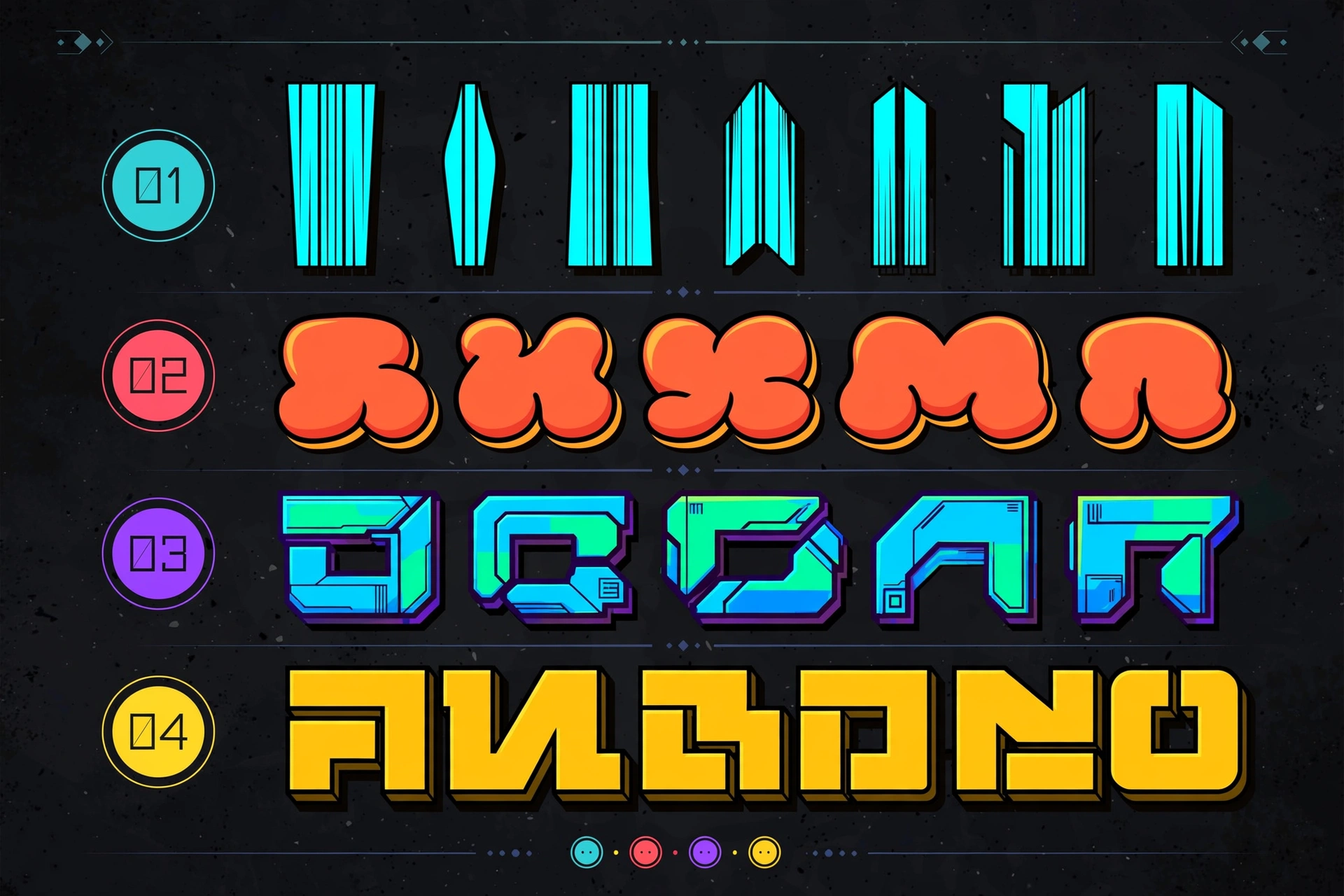
10 Best Free Fonts for PixelLab Thumbnails
All of these are free for personal use (several are free even for commercial use — always double-check the license on the download page).
1. Anton
The king of YouTube thumbnail fonts. Anton is a super-bold condensed sans-serif that screams for attention. Perfect for gaming, sports, and commentary channels. One word in Anton with a white stroke can carry an entire thumbnail.
2. Bebas Neue
Tall, narrow, and commanding. Bebas Neue is the go-to for tech reviews, fitness, and news-style thumbnails. It stacks beautifully in multi-line layouts.
3. Luckiest Guy
Chunky, cartoonish, and fun — ideal for kids’ content, pranks, and entertainment channels. Its bouncy letterforms practically beg for a thick outline and drop shadow.
4. Bangers
A comic-book style font with attitude. Great for reaction videos, challenges, and anything loud. Pair it with a yellow fill and black stroke for the classic viral look.
5. Archivo Black
A heavy grotesque that’s readable at any size. Works for almost every niche — finance, tutorials, vlogs. If you only download one “safe” font, make it this one.
6. Russo One
Squared, futuristic letterforms with a techy edge. Perfect for gaming montages, AI/tech content, and esports thumbnails.
7. Titan One
Bold and rounded with a friendly punch. Great for food channels, lifestyle vlogs, and family content where you want energy without aggression.
8. Montserrat ExtraBold
Clean, modern, and professional. The ExtraBold weight holds up at thumbnail size while looking more premium than most display fonts. Ideal for business and educational channels.
9. Oswald (Bold/SemiBold)
Condensed and versatile — fits long words into tight thumbnail spaces without shrinking the text to nothing. A lifesaver when your title has big words.
10. Poppins Bold
Geometric, friendly, and extremely readable. Works well for tutorial and how-to thumbnails where clarity matters more than hype.
Where to Download Free Fonts Safely
Stick to these trusted sources — random font sites are a common source of malware:
- Google Fonts (fonts.google.com) — 100% free, including commercial use, no account needed
- DaFont (dafont.com) — huge collection; check each font’s license note before commercial use
- 1001 Fonts (1001fonts.com) — similar to DaFont with clear license labels
Download the .TTF or .OTF file (not the .zip — extract it first with your phone’s file manager).
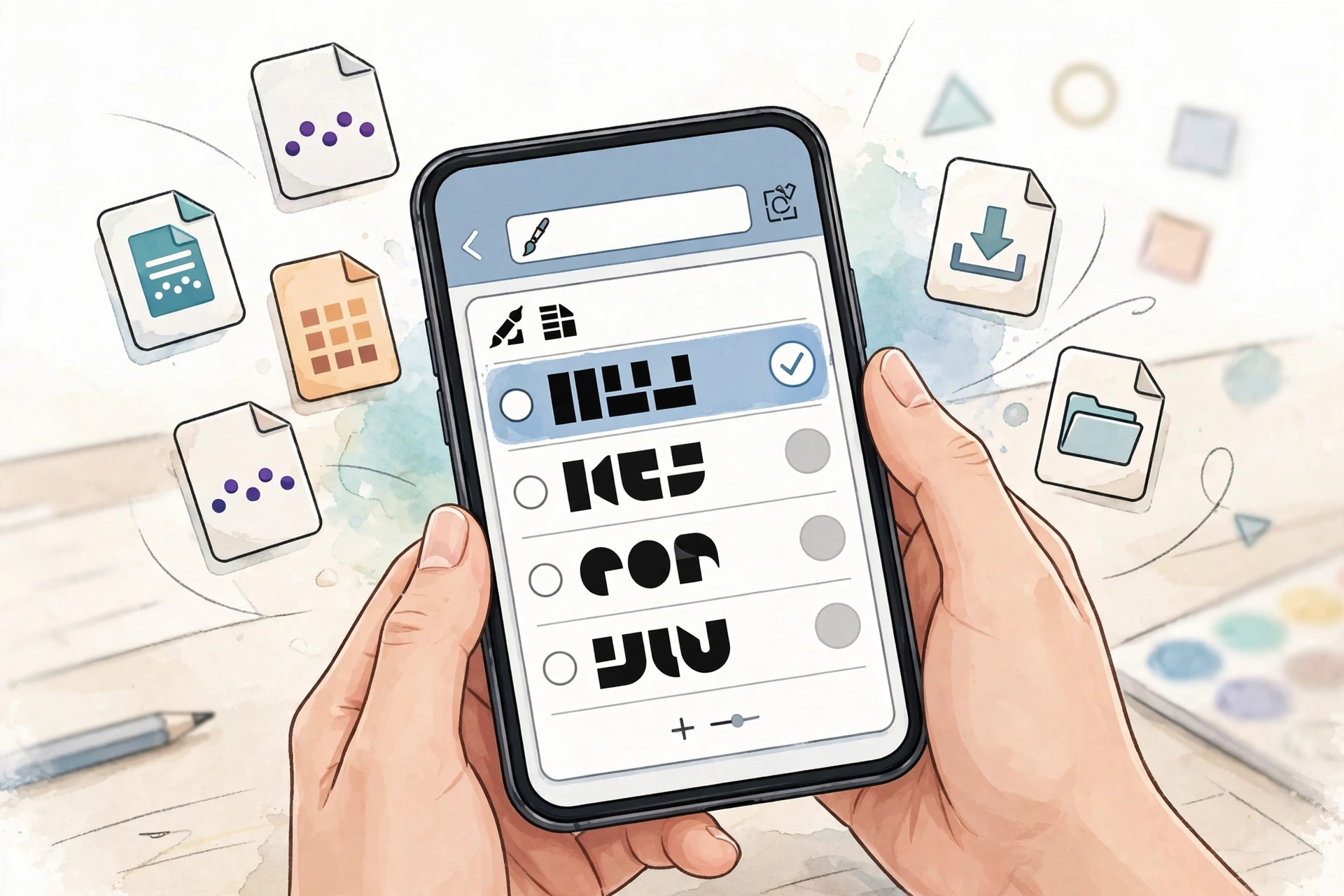
How to Import Fonts into PixelLab
The 2-minute process:
- Move your downloaded .TTF/.OTF file into Internal Storage → PixelLab → Fonts (create the Fonts folder if it doesn’t exist)
- Close PixelLab completely and reopen it — it reads new fonts at launch
- Add a text layer, open the Fonts option, scroll to “My Fonts” — your font is there
That’s it. For the full walkthrough with screenshots and troubleshooting (font not showing? wrong file type?), see our complete guide: How to Add Custom Fonts in PixelLab.
5 Thumbnail Text Tips That Get Clicks
- Max 3–4 words. Thumbnails aren’t titles — “I WAS WRONG” beats a full sentence.
- Stroke everything. In PixelLab, add a Stroke of 8–15px in black or white around your text. Un-stroked text vanishes on busy backgrounds.
- One font per thumbnail. Two fonts max, and only if one is clearly the “shout” and the other the “whisper.”
- Contrast is king. Light text on dark backgrounds (or vice versa). Test by squinting — if you can’t read it squinting, viewers can’t read it scrolling.
- Match the mood. Horror video? Distressed bold font. Finance video? Clean heavy sans like Archivo Black. Mismatched fonts confuse viewers.
Frequently Asked Questions
Are these fonts really free?
Yes — all ten are free for personal use, and most (including everything from Google Fonts) are free for commercial/YouTube monetized use too. Always verify the license on the download page before using a font in client work.
Why isn’t my font showing in PixelLab?
Two common causes: the file is still inside the .zip (extract the .TTF/.OTF first), or PixelLab wasn’t fully restarted. Our custom fonts guide covers every fix.
What’s the single best font for YouTube thumbnails?
Anton. It’s the most-used thumbnail font on YouTube for a reason — maximum impact at minimum size. Start there, then experiment.
Can I use these fonts for my channel logo too?
Absolutely — and if you’re designing a full logo, check out our PixelLab logo tutorial for the complete process.
Final Words
Great thumbnails aren’t about having 500 fonts — they’re about having the right 5–10 and knowing how to style them. Download Anton, Bebas Neue, and Archivo Black today, import them into PixelLab, and your next thumbnail will already look more clickable. Then come back and grab the rest as your channel grows.