

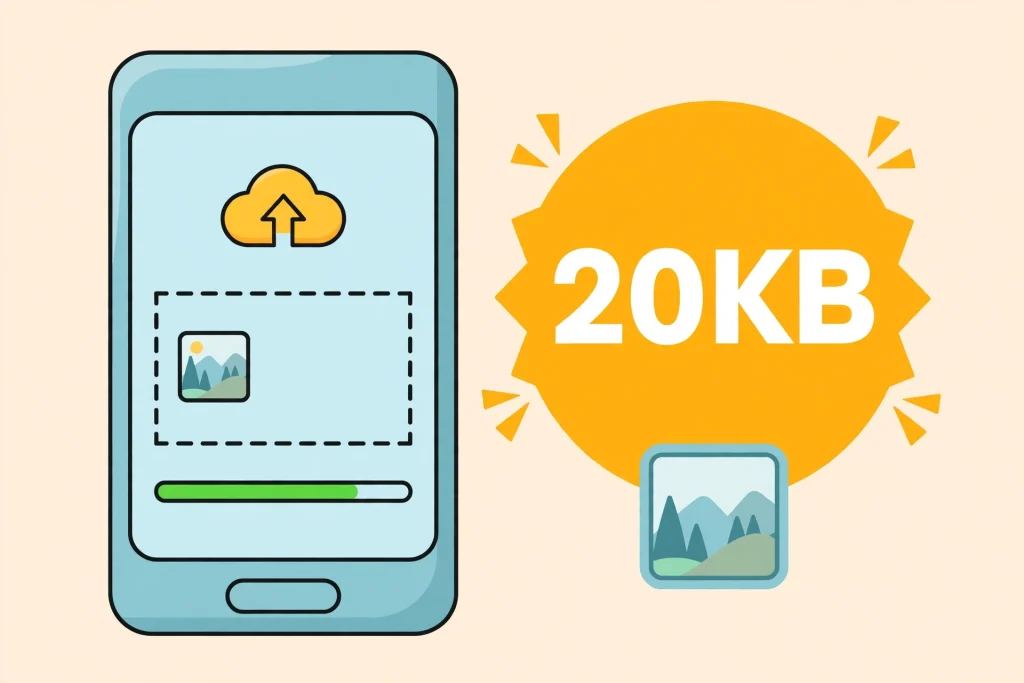
Online forms in Pakistan — job applications, university admissions, government portals — often ask for a photo under a strict limit, and 20KB is one of the most common. Upload a normal phone photo and it gets rejected for being too big; shrink it blindly with a random app and it comes back blurry, or still over the limit.
There is a simpler way: pick 20KB as the target first, and let the tool hit that size for you. No app install, no signup, and it runs in your browser.
Why 20KB Is Tricky

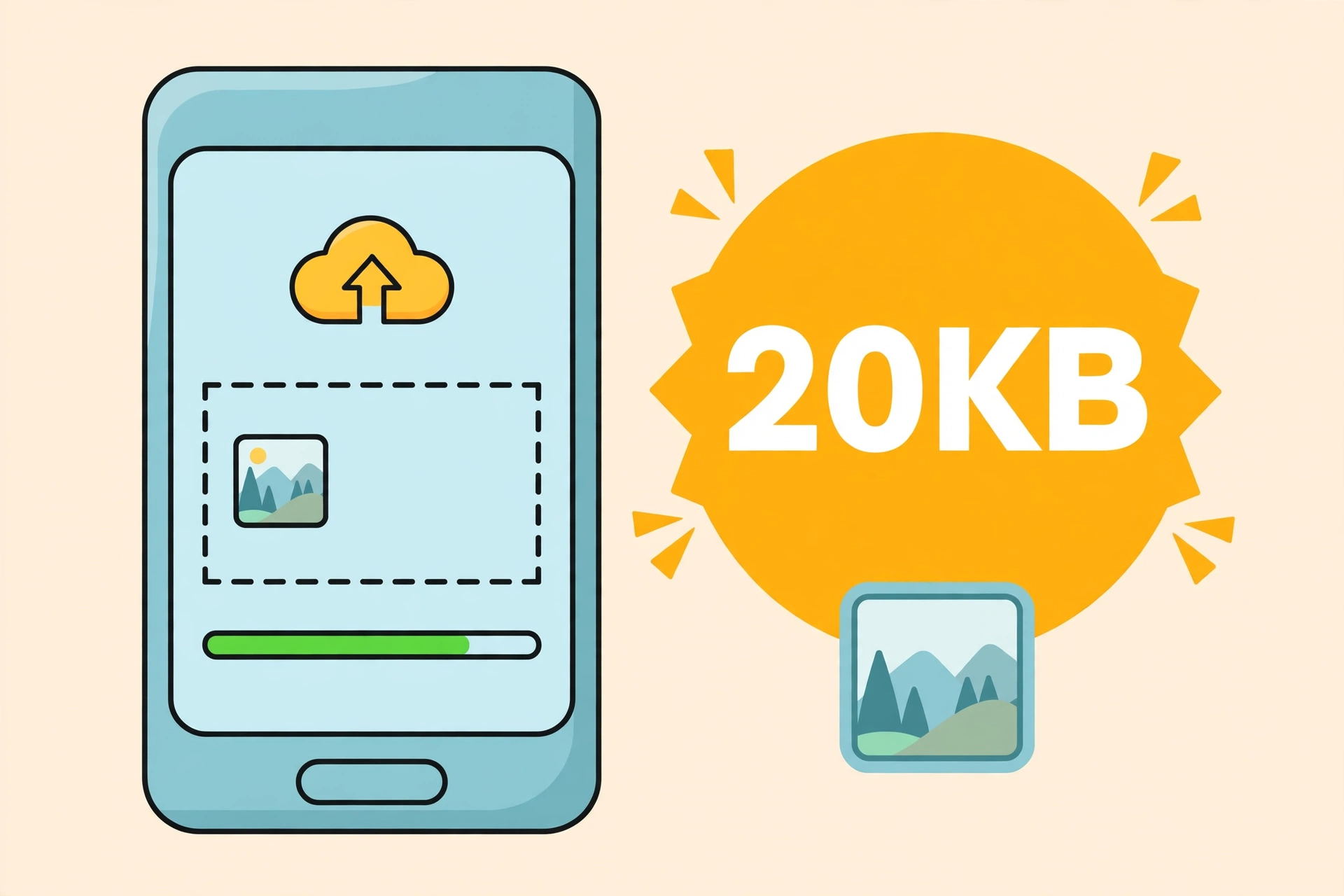
Name
How to Compress a Photo to 20KB (Free, No App Needed) — 2026 Guide
Date
Catagory
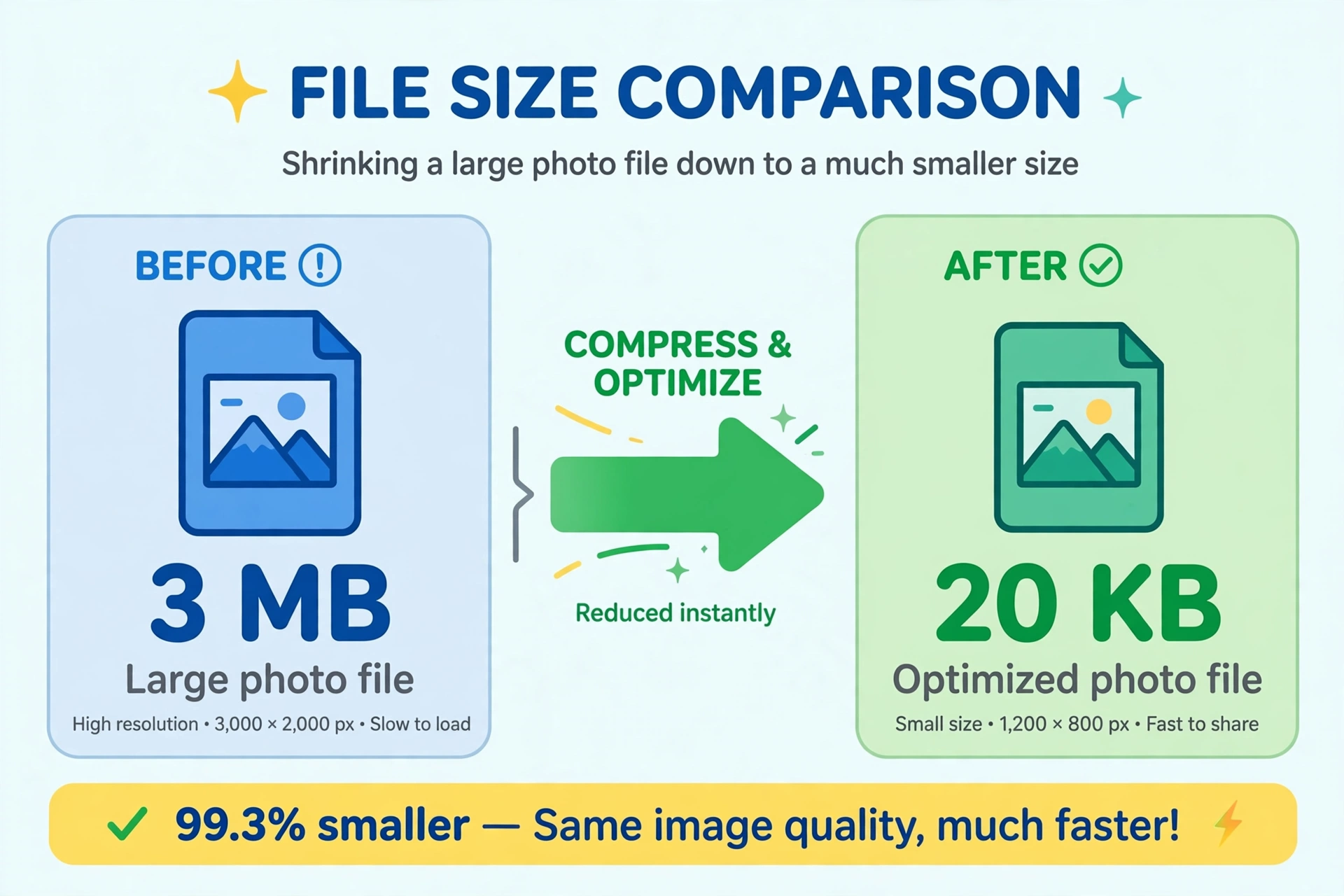
A phone photo is usually 2–5 MB — that is 100 to 250 times bigger than 20KB. Cutting it down that far means throwing away a lot of data, so two things matter:
- Exact size, not “about” 20KB. A form that says “max 20KB” will reject 21KB. A compressor that only offers “small / medium / large” leaves you guessing.
- Readability, not just size. A passport-style photo at 20KB still needs a recognisable face. Heavy compression blurs text and faces first, so the starting photo matters.
Step-by-Step: Compress to Exactly 20KB
Step 1: Open the free Image Compressor: https://thepixellabmodapk.com/image-compressor/
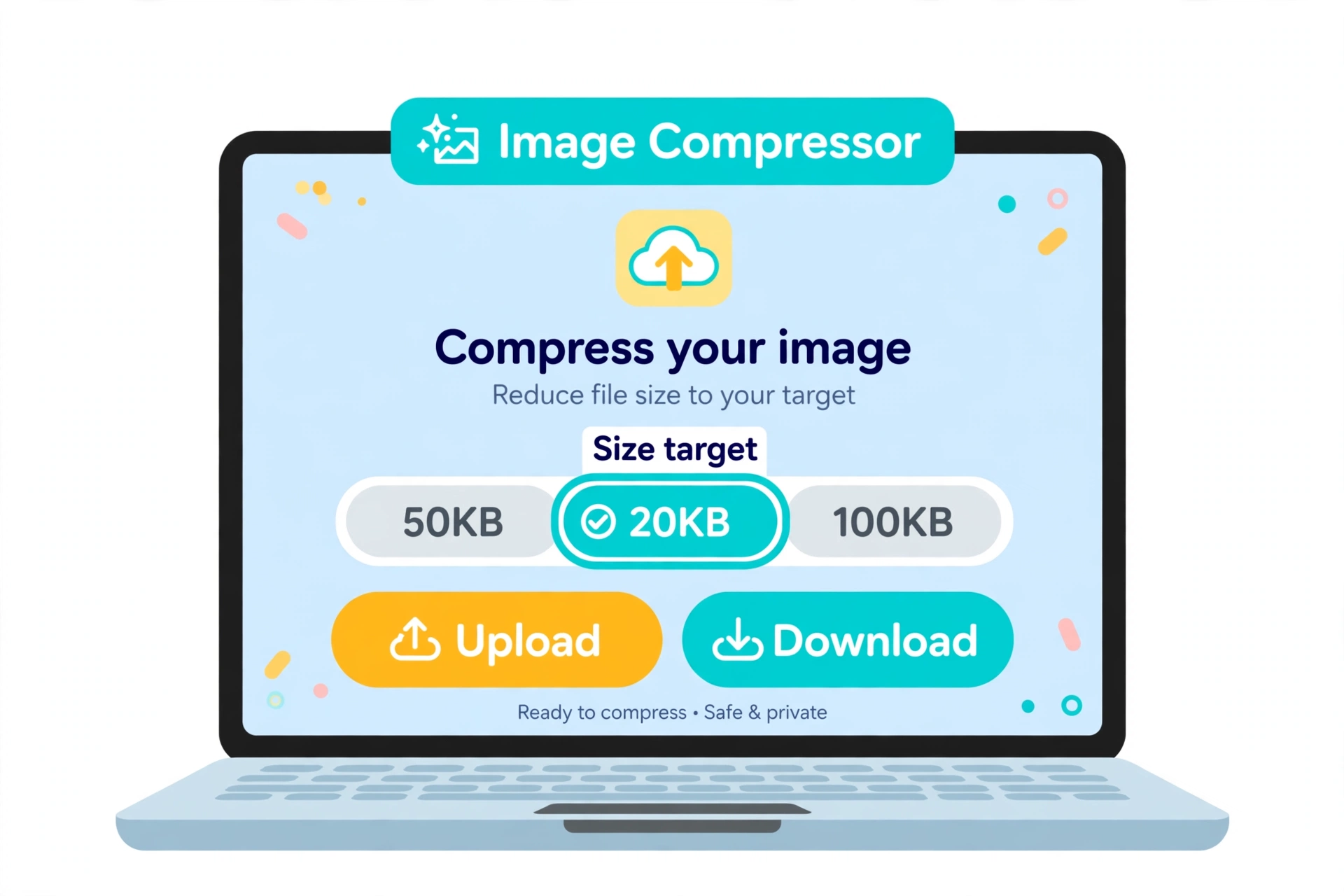
Step 2: Upload your photo (JPG, PNG or WebP).
Step 3: Choose 20KB as your target size. The tool also offers 50KB, 100KB, 200KB and 500KB targets if another form asks for a different limit.
Step 4: If you want, set a max width as well — a smaller width helps a lot when the photo is a huge phone shot. Then download the result.
Step 5: Check the downloaded file before uploading it to the form: open it and confirm the face (or document) is still clear, and that the file size really is 20KB or under.
That is the whole process — upload, pick 20KB, download. Because everything runs in your browser, there is no app to install and no watermark added.
If the Result Looks Blurry
- Start with a better photo. A sharp, well-lit original survives compression far better than a dark or already-blurry one. Retake it if you can.
- Crop first, compress second. Cut away empty background before compressing, so the 20KB is spent on the face, not on blank space.
- Do not compress twice. Compressing an already-compressed photo again makes it worse each time. Always go back to the original and compress once, to the size you need.
- Try JPG for photos. For a normal photograph, JPG usually gives the cleanest result at tiny sizes. PNG is better for screenshots and graphics with sharp text.
20KB vs Other Common Limits
- 20KB: online forms, exam/admission uploads, ID photos.
- 50KB: many job portals and profile uploads.
- 100KB–200KB: blog posts, WhatsApp/website images where quality matters more.
- 500KB: social posts and general sharing.
If a form ever asks for a different limit, the same steps apply — just pick that target instead of 20KB.
Common Mistakes to Avoid
- Compressing a screenshot of a photo: screenshots add noise and make the result worse. Use the original photo file.
- Upscaling a tiny photo first: a 10KB photo stretched bigger, then compressed back to 20KB, will look soft. Start from the largest original you have.
- Forgetting to check the final size: always look at the downloaded file’s size before submitting the form — “it looked small” is not a check.
Frequently Asked Questions
Can I compress a photo to exactly 20KB for free?
Yes. Upload the photo, set 20KB as the target, and download the result — no app, no signup, no watermark.
Will a 20KB photo still look clear?
For an ID-style or form photo, yes, if you start from a sharp original and crop before compressing. Very detailed photos (group photos, landscapes) lose more quality at 20KB than a single face does.
What format should I use for a form photo?
JPG is the safest choice for photographs — most forms accept it, and it compresses cleanly at small sizes.
Does compressing reduce the photo’s dimensions?
It can, if you set a max width. Otherwise the tool mainly reduces file size while keeping the photo usable for the form.
Final Words
For a 20KB form photo, do not guess with a generic “small” setting — set 20KB as the target, crop first, compress once from the original, and check the downloaded file before you submit. If you also need a different size for another platform, the same tool handles that too, and our free resizer (https://thepixellabmodapk.com/image-resizer/) covers exact platform dimensions like 1080×1080 or 1280×720. All three free tools live together here: https://thepixellabmodapk.com/tools/