


A well-designed poster helps judges and visitors quickly understand your research, hypothesis, experiment, and conclusions. While many students use desktop software, PixelLab makes it easy to design high-quality science fair posters directly from your Android device. With powerful text tools, customizable fonts, image support, layers, and creative design options, PixelLab is an excellent choice for school and college students who want attractive presentations without expensive software. How to Make Eye-Catching Science Fair Posters Using PixelLab
In this guide, you’ll learn how to create a professional science fair poster using PixelLab, from choosing the right layout to exporting a print-ready design.
Table of Contents
🎯 Why Use PixelLab for Science Fair Posters?
PixelLab is a lightweight yet powerful graphic design application that allows users to create professional posters using only a smartphone.
Key Benefits
- ✅ Easy to use for beginners
- ✅ Professional text editing tools
- ✅ Custom fonts support
- ✅ Background image editing
- ✅ High-quality image export
- ✅ Shape and icon support
- ✅ Lightweight and fast
- ✅ Free to use
Whether you’re designing a biology, chemistry, physics, or engineering project poster, PixelLab provides all the essential tools you need.
📝 What You’ll Need Before You Start
Before opening PixelLab, gather the following information:
- Project title
- Student name
- School name
- Research question
- Hypothesis
- Materials used
- Methodology
- Results
- Graphs or charts
- Photos of your experiment
- Conclusion
- References
Preparing this content first makes the design process much smoother.
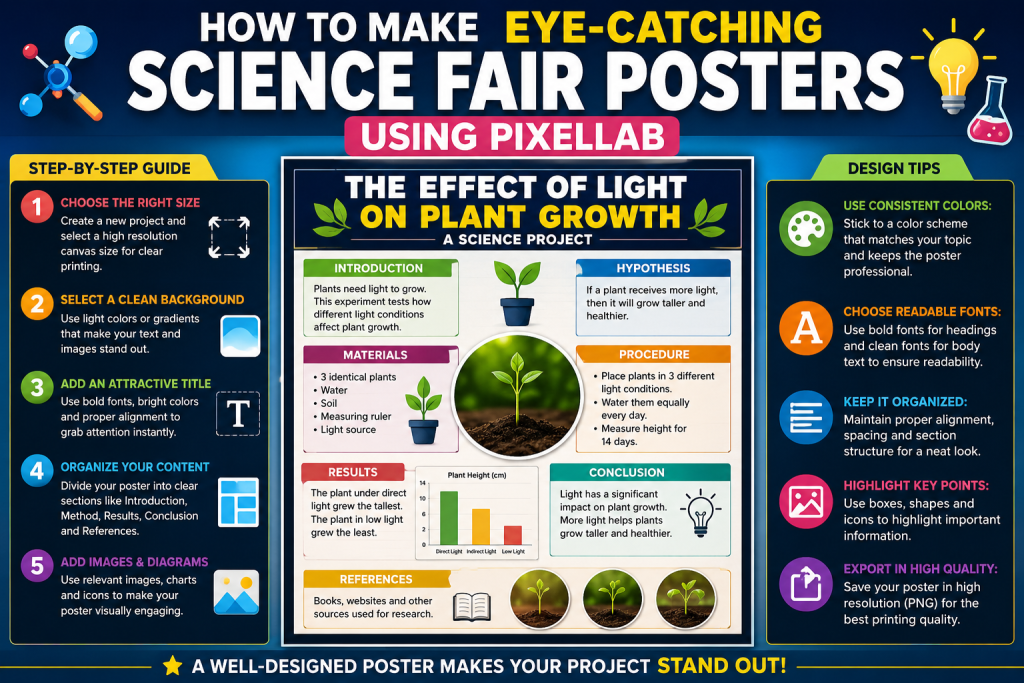
📱 Step 1: Create a New Canvas
Open PixelLab and create a new project.
For printing, choose a large canvas size such as:
- 1920 × 2880 px
- 2480 × 3508 px (A4 at 300 DPI)
- Custom size based on your printing requirements
Using a high-resolution canvas ensures your poster looks sharp when printed.
🎨 Step 2: Select a Clean Background
A science fair poster should be easy to read. Choose a clean background such as:
- White
- Light blue
- Soft gray
- Light green
Avoid dark or overly decorative backgrounds, as they can distract from your content.
If desired, add a subtle gradient to make the design more modern while maintaining readability.
🔠 Step 3: Add an Attractive Title
Your project title should immediately grab attention.
For example:
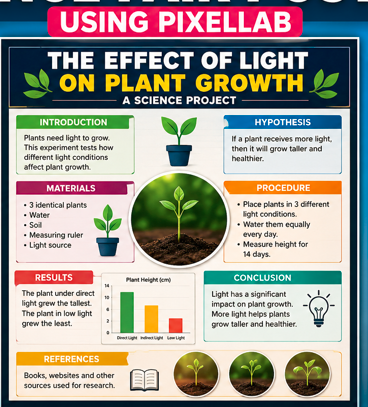
The Effect of Light on Plant Growth
Use:
- Bold fonts
- Large font size
- Dark colors
- Center alignment
PixelLab allows you to apply shadows, outlines, and spacing adjustments to make the title stand out.
📚 Step 4: Organize the Poster into Sections
A well-structured poster is easier to understand.
Include sections such as:
- Introduction
- Objective
- Hypothesis
- Materials
- Procedure
- Observations
- Results
- Conclusion
- References
Keep each section clearly separated with headings and enough white space.
🖼️ Step 5: Add Images and Diagrams
Visual elements make your poster more engaging.
You can include:
- Experiment photos
- Scientific diagrams
- Graphs
- Charts
- Illustrations
PixelLab lets you resize, crop, rotate, and position images with precision.
Use only high-quality images to maintain a professional appearance.
🎨 Step 6: Choose Readable Fonts
Typography plays a major role in poster design.
Recommended font combinations include:
- Montserrat
- Poppins
- Roboto
- Open Sans
- Lato
Use one font for headings and another for body text to create a clean visual hierarchy.
Avoid decorative fonts that are difficult to read.
🌈 Step 7: Use a Consistent Color Scheme
Choose two or three complementary colors for your design.
A science poster often looks best with combinations such as:
- Blue and White
- Green and White
- Navy and Gray
- Teal and White
Maintain consistency throughout the poster to create a polished look.
📊 Step 8: Present Data Clearly
Your results are the most important part of the project.
Present them using:
- Tables
- Bar charts
- Pie charts
- Line graphs
- Comparison diagrams
Ensure all labels are readable and properly aligned.
✨ Step 9: Highlight Important Information
Use PixelLab’s design tools to emphasize key points.
You can:
- Add colored boxes
- Use bold headings
- Insert icons
- Apply subtle shadows
- Highlight conclusions
These elements guide the reader’s attention without making the design look cluttered.
📤 Step 10: Export in High Quality
Before printing:
- Review the entire poster.
- Check spelling and grammar.
- Verify image quality.
- Ensure alignment is correct.
Export the final design as a PNG or high-quality JPG at the highest available resolution.
💡Fair Poster Creating an Outstanding Science
- Keep the layout clean and organized.
- Use high-resolution images.
- Limit the number of fonts.
- Maintain consistent spacing.
- Use bullet points where appropriate.
- Avoid overcrowding the poster.
- Make headings larger than body text.
- Choose contrasting colors for readability.
❌ Common Mistakes to Avoid
Many students reduce the impact of their posters by making avoidable mistakes.
Avoid:
- Tiny text
- Too many colors
- Low-quality images
- Excessive text
- Poor alignment
- Busy backgrounds
- Inconsistent font styles
- Missing section headings
A simple, organized design is often more effective than a flashy one.
🌟 Why PixelLab Is a Great Choice
PixelLab combines powerful design features with an easy-to-use interface, making it suitable for students of all skill levels.
Whether you’re creating a middle school project or a college research presentation, PixelLab provides the flexibility to produce professional-looking posters directly from your phone.
✅ Final Thoughts
Designing an eye-catching science fair poster doesn’t require expensive desktop software. With PixelLab, you can create a polished, informative, and visually appealing poster using only your Android device.
Focus on clear organization, readable fonts, high-quality visuals, and a consistent color palette. By following the steps in this guide, you’ll create a science fair poster that communicates your research effectively and leaves a strong impression on judges and classmates.
❓ Frequently Asked Questions
Is PixelLab good for creating science fair posters?
Yes. PixelLab offers advanced text editing, image support, customizable fonts, and high-resolution exports, making it an excellent choice for science fair poster design.
What poster size should I use?
Use a high-resolution canvas such as A4 (2480 × 3508 px) or a custom size based on your printing requirements.
Which fonts are best for science posters?
Professional fonts like Montserrat, Poppins, Roboto, Open Sans, and Lato provide excellent readability.
What is the best export format?
PNG is recommended for the highest image quality, especially if you plan to print your poster.