


Outline text is one of those small effects that makes a huge difference. That bold bordered text you see on YouTube thumbnails and Instagram posts? Most of it is made with an outline (also called a “stroke”) — and PixelLab can do it in under a minute, no Photoshop needed.
In this guide, you’ll learn three ways to create outline text in PixelLab: the quick built-in Stroke option, the hollow outline look, and a layer trick for extra-thick borders.
What Is Outline Text?

Name
How to Create Outline Text in PixelLab (Step-by-Step Guide 2026)
Date
Catagory
Outline text is text with a colored border drawn around each letter. The inside (fill) can be a solid color, transparent, or even a gradient — the outline is what makes the letters pop, especially over busy backgrounds like photos.
It’s everywhere in thumbnail design because it keeps text readable no matter what’s behind it. If you’re making thumbnails, pair this with our curve text guide (https://thepixellabmodapk.com/how-to-curve-text-in-pixellab-step-by-step-guide-2026/) for even more eye-catching titles.
Method 1: Using the Built-In Stroke Option (Easiest)
This is the fastest way — PixelLab has a dedicated Stroke setting for text.
Step 1: Open PixelLab and tap the + icon, then choose Text. Type your text and tap OK.
Step 2: With the text layer selected, tap the “A” (text edit) icon in the bottom toolbar. This opens the text settings panel.
Step 3: Scroll through the options until you find Stroke. Tap it.
Step 4: Turn the Stroke toggle on. You’ll see two controls: Stroke width — a slider that controls how thick the outline is; Stroke color — tap it to pick the outline color from the color picker.
Step 5: Adjust the width until the outline looks right (more on ideal thickness below), pick your color, and tap the checkmark to apply.
That’s it — your text now has an outline. This method takes less than a minute once you know where the setting lives.
Method 2: Hollow Outline Text (Transparent Fill)
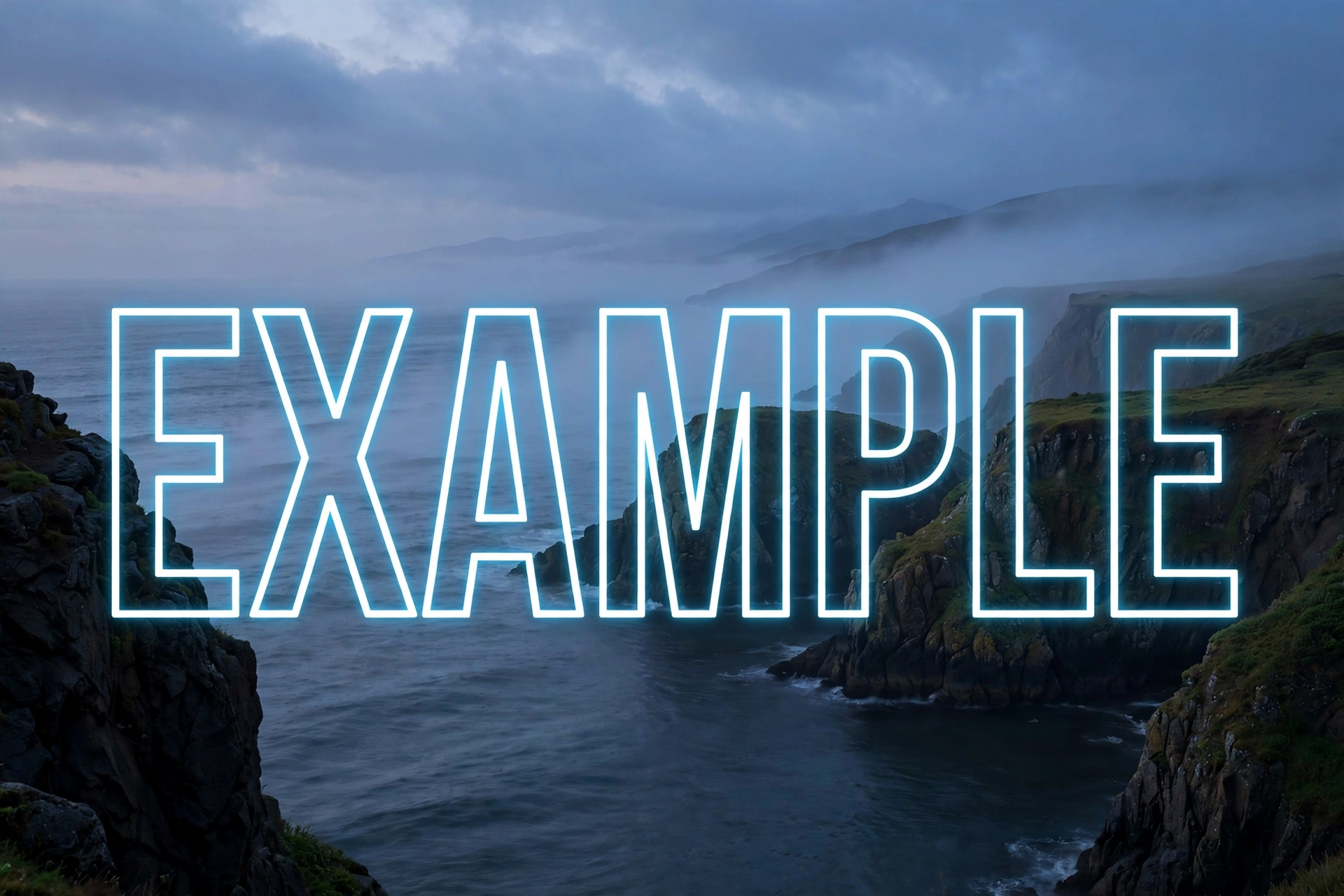
Want that trendy hollow look — just the border, no fill color inside the letters? Easy:
Step 1: Follow Method 1 to add your text and enable Stroke with your chosen width and color.
Step 2: Go back to the text color setting (the Color option in the same text settings panel).
Step 3: Set the text fill color to transparent — tap the color picker and choose the transparent/empty swatch (usually shown as a checkered square).
Now only the outline remains, giving you clean hollow text. This looks fantastic on thumbnails over photos. Speaking of photos — if your background is busy, our background removal guide (https://thepixellabmodapk.com/how-to-remove-background-in-pixellab/) shows how to cut out your subject first for a cleaner design.

Method 3: The Layer Duplication Trick (Extra-Thick Outlines)
PixelLab’s stroke slider has a maximum thickness. If you want an even bolder outline, use this classic designer trick:
Step 1: Create your text and apply a stroke using Method 1.
Step 2: Open the layers panel (top-right icon), long-press your text layer, and choose Duplicate. You now have two identical text layers stacked.
Step 3: Select the bottom layer and change its text color to your outline color. Then increase its stroke width to maximum.
Step 4: Select the top layer and keep it as your normal text (fill color of your choice, thin or no stroke).
The bottom layer peeks out from behind the top one, creating a much thicker outline than the slider alone allows. Adjust the bottom layer’s stroke width to control exactly how bold it gets.


Pro Tips for Perfect Outline Text
Match thickness to text size. Big bold thumbnail text can handle a thick stroke; small text with a heavy outline becomes unreadable. As a rule of thumb, the stroke should be visible but never swallow the letter shapes.
Use high-contrast colors. White text with a black outline (or the reverse) is the classic thumbnail combo for a reason — it stays readable over any background. For brand designs, try your brand color as the fill with white or black as the outline.
Pick the right font. Thick, bold fonts take outlines beautifully; thin script fonts can get messy. Check our free fonts guide (https://thepixellabmodapk.com/best-free-fonts-for-pixellab-thumbnails-download-import-guide-2026/) for thumbnail-ready fonts that pair well with strokes.
Combine with a subtle shadow. A soft drop shadow behind outlined text adds depth and lifts it off the background. In the text settings, enable Shadow, keep the blur moderate, and use black at 40–60% opacity.
Keep it consistent. If your thumbnail has multiple text elements, use the same stroke width and color on all of them. Consistency looks professional; random outlines look accidental.
Common Mistakes to Avoid
- Stroke too thick: The letters fill in and become blobs. Zoom out and check readability at thumbnail size.
- Low-contrast outline: A dark blue outline on black text disappears. Always test against your actual background.
- Outlining every word: Outline your headline, not your whole paragraph. One outlined element per design is usually enough.
- Forgetting the background: Outlined text over a cluttered photo still struggles. Blur the background slightly (https://thepixellabmodapk.com/how-to-blur-background-in-pixellab/) to make your text the star.
Frequently Asked Questions
Where is the stroke option in PixelLab?
Select your text layer, tap the “A” text-edit icon in the bottom toolbar, and scroll to the Stroke option. Toggle it on to reveal width and color controls.
Can I make outline text with no fill in PixelLab?
Yes. Enable Stroke, then set the text fill color to transparent in the Color setting. You’ll get hollow outline text.
Why does my outline look pixelated?
You’re likely zoomed in too far, or the stroke width is maxed on small text. Increase the text size first, then apply a moderate stroke — and export at high resolution.
Does outline text work with 3D text in PixelLab?
Yes, you can combine them, but go easy — 3D depth plus a thick stroke can get visually noisy. Use a thin stroke with 3D text.
Final Words
Outline text is a 60-second skill that instantly upgrades your thumbnails, posters, and social posts. Start with the built-in Stroke option, try the hollow look for photos, and use the duplication trick when you need maximum boldness. Once you’ve mastered outlines, curved text is the natural next step — happy designing!