


PixelLab has quietly become one of the go-to apps for anyone designing graphics straight from their phone — whether that’s a small business owner making a flyer, a student putting together a presentation, or a content creator building thumbnails for YouTube. The PixelLab Features Most Popular 2026 (And How to Use Them) With so many tools packed into one free app, it’s worth breaking down which features people are actually using the most, and how to get the best results from each one.Here’s a rundown of PixelLab’s most popular features right now.
1. 3D Text Effects

Name
The PixelLab Features Most Popular 2026 (And How to Use Them)
Date
Catagory
By far one of the most searched-for features, and for good reason — 3D text instantly makes a design look more polished without much effort.
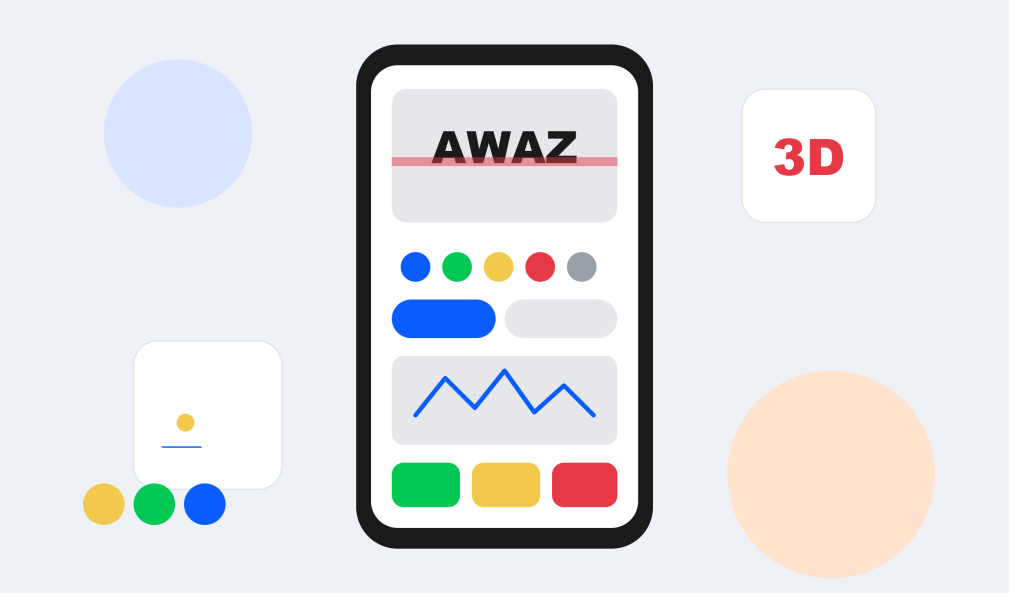
How to use it: Add a text layer, select it, then open the 3D/style panel. Adjust the depth, rotation, and light direction sliders until the text has a believable sense of dimension. Keep phrases short (1–3 words) for the cleanest results.
Best for: Thumbnails, posters, bold headline graphics.
2. Background Removal
Cutting a subject out of its background used to require a desktop tool like Photoshop. Now it’s a built-in feature in PixelLab, and it’s one of the most-used tools in the app.
How to use it: Import your photo, select the background removal tool, and let the app automatically detect the subject. You can fine-tune the edges manually afterward for a cleaner cutout, especially around hair or complex edges.
Best for: Product photos, profile pictures, combining subjects with new backgrounds.
3. Logo and Branding Templates
Small business owners and freelancers search for this constantly — and it makes sense, since a professional-looking logo can otherwise cost real money.
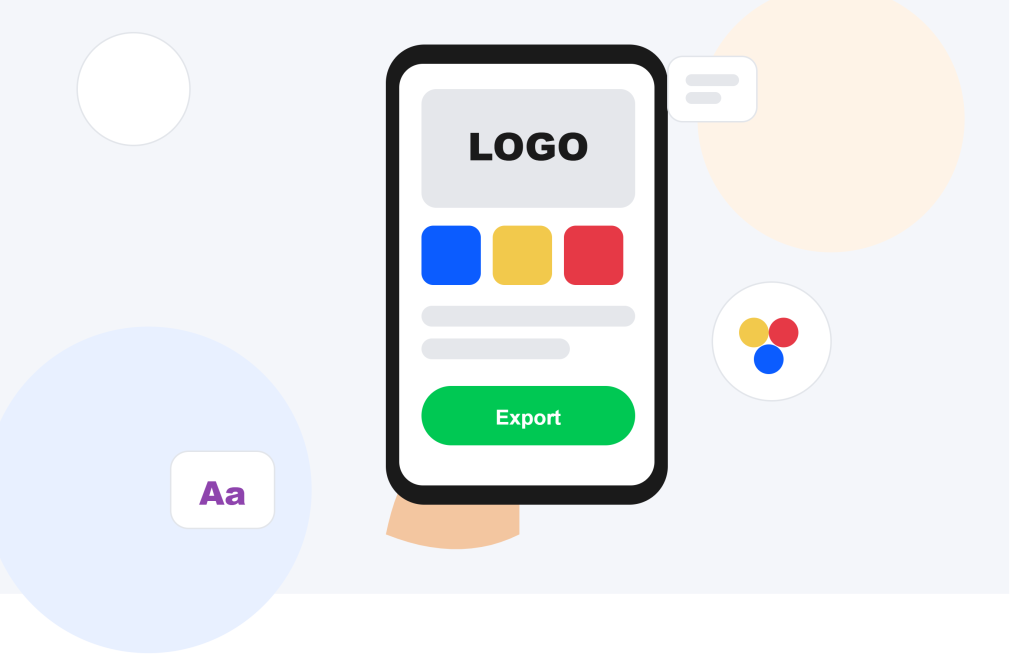
How to use it: Start with a square canvas, add your brand name as text, choose a font that matches your brand’s personality, and keep your color palette to two or three shades. Export with a transparent background so the logo can be used anywhere.
Best for: Startups, personal brands, social media profile icons.
4. Custom Fonts and Text Styling
PixelLab’s font library is one of its biggest draws. Between bold display fonts, script fonts, and clean sans-serifs, there’s enough variety to match almost any design style.
How to use it: Tap your text layer, browse the font menu, and preview how each one looks directly on your canvas before committing. Combine with letter spacing adjustments for a more refined look.
Best for: Quotes, headlines, social media captions baked into images.
5. Gradient Fills and Color Effects
Flat colors are fine, but gradients are what give a lot of modern designs their polish — and PixelLab makes them easy to apply to both text and shapes.
How to use it: Select any text or shape layer, open the color/fill menu, and switch from solid color to gradient. Adjust the angle and color stops until it complements the rest of your design.
Best for: Modern-looking branding, social posts, app-style graphics.
6. Stickers and Overlays
A quick way to add personality to a design without starting from scratch — PixelLab has a built-in sticker library covering everything from simple icons to decorative elements.
How to use it: Open the sticker panel, search or browse by category, and drag your chosen sticker onto the canvas. Resize and layer it with your other elements as needed.
Best for: Casual social media posts, greeting-style graphics, playful branding.
7. Multi-Layer Editing
Less flashy than the others, but arguably the most important feature underneath everything else — the ability to stack and independently edit multiple text and image layers is what makes more complex designs possible on a phone screen.
How to use it: Add each new element (text, image, sticker) as its own layer, then use the layers panel to reorder, hide, or adjust them individually without disturbing the rest of your design.
Best for: Any design with more than one element — which is most of them.

Getting the Most Out of PixelLab
A few general tips that apply across all of these features:
- Save your project files, not just exported images, so you can revisit and tweak designs later.
- Export at higher resolutions if your design is headed for print rather than just social media.
- Don’t stack too many effects at once — a clean design with one or two strong effects usually looks better than one with everything turned on.
Final Thoughts
PixelLab keeps adding more tools, but these core features are what most people are actually using day to day. If you’re just getting started, pick one — 3D text or background removal are great entry points — and build from there.
What’s your go-to PixelLab feature? Let us know in the comments.
Suggested internal links: