
How to Create Custom Instagram Story Templates in PixelLab
📖 Introduction
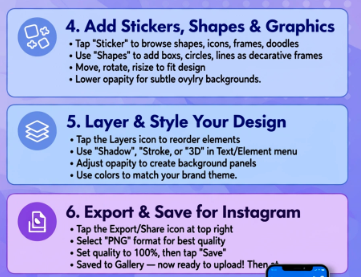
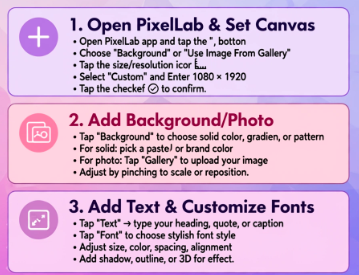
Instagram Stories have become one of the most powerful ways to connect with audiences, promote products, and build a recognizable brand. Since Stories disappear after 24 hours, businesses and content creators publish them frequently. Designing a new Story every day, however, can be time-consuming.That’s where PixelLab comes in. PixelLab is a feature-rich mobile graphic design app that allows you to create professional Instagram Story templates directly from your smartphone. By designing reusable templates, you can simply replace the text or images whenever you need a new Story, saving both time and effort while keeping your branding consistent. How to Create Custom Instagram Story Templates in PixelLab In this guide, you’ll learn how to create custom Instagram Story templates in PixelLab, from setting up the perfect canvas to exporting high-quality designs ready for Instagram.
Table of Contents
🎨 Why Choose PixelLab?
PixelLab is popular among designers, marketers, and social media creators because it combines powerful editing tools with an easy-to-use interface.
Key Features
- ✨ Custom text editing with hundreds of fonts
- 🎨 Gradient and solid color backgrounds
- 🖼️ PNG image support
- 📐 Shape and line tools
- 🌟 Text shadow and glow effects
- 🧩 Layer management
- 💾 Save projects for future editing
- 📱 Optimized for mobile devices
These features make PixelLab ideal for creating reusable Instagram Story templates.
⭐ Benefits of Creating Custom Instagram Story Templates
Using templates offers several advantages:
- Save Time: Design once and reuse the layout whenever needed.
- Maintain Brand Consistency: Keep the same colors, fonts, and visual identity across all Stories.
- Improve Engagement: Professionally designed Stories are more likely to capture attention.
- Boost Productivity: Quickly create new content by replacing images and text instead of starting from scratch.
- Professional Appearance: Consistent branding helps build trust and recognition.
📋 What You’ll Need
Before starting, gather the following:
- PixelLab installed on your Android device
- Your brand logo (optional)
- Brand colors
- Custom fonts (optional)
- High-quality images
- Icons or stickers
- Instagram content ideas
Preparing these assets in advance makes the design process much smoother.

📐 Set the Correct Instagram Story Size
Instagram recommends the following dimensions:
- Width: 1080 pixels
- Height: 1920 pixels
- Aspect Ratio: 9:16
Using these dimensions ensures your Story appears sharp and fits perfectly on all supported devices.
🚀 Step 1: Open PixelLab
Start with a blank canvas to build your template from scratch.
📏 Step 2: Adjust the Canvas Size
Tap the canvas settings and enter:
- Width: 1080 px
- Height: 1920 px
This creates a Story-sized workspace that matches Instagram’s recommended resolution.
🎨 Step 3: Choose a Background
The background sets the tone for your design. Depending on your content, you can use:
- Solid brand colors
- Gradient backgrounds
- Minimal textures
- Blurred photos
- High-quality images
Avoid busy backgrounds that make text difficult to read.
✍️ Step 4: Add a Catchy Headline
Insert a text box and create a bold headline.
Examples include:
- New Collection
- Weekend Sale
- Latest Blog Post
- Behind the Scenes
- Limited-Time Offer
Use large fonts with strong contrast so your message is easy to read on mobile screens.
🖼️ Step 5: Insert Images
Import product photos, portraits, or illustrations that support your Story.
For the best results:
- Use high-resolution images.
- Remove unnecessary backgrounds if needed.
- Position images without covering important text.
- Leave enough white space to keep the design clean.
🔷 Step 6: Add Shapes and Design Elements
PixelLab includes various shape tools that help organize your layout.
Consider using:
- Rounded rectangles for buttons
- Circles for highlighting offers
- Lines to separate sections
- Frames for featured products
These elements improve readability and guide viewers through your Story.
🎯 Step 7: Include a Clear Call-to-Action
Every Story should encourage viewers to take action.
Popular CTA examples include:
- Shop Now
- Learn More
- Visit Our Website
- Tap the Link
- Send a Message
- Follow for More
Use contrasting colors and larger text sizes to make your CTA stand out.
🌈 Step 8: Apply Consistent Branding
Consistency helps your audience recognize your content instantly.
Include:
- Your logo
- Brand colors
- Consistent typography
- Social media handle
- Website URL (if applicable)
Keeping these elements uniform strengthens your brand identity.
💾 Step 9: Save Your Template
Instead of creating a new design every time, save your PixelLab project.
When you need another Story:
- Replace the text.
- Update the image.
- Export the design.
This workflow saves time while maintaining a professional appearance.
📤 Step 10: Export in High Quality
For the best visual quality:
- Export as PNG.
- Use the highest available resolution.
- Maintain the original canvas size (1080 × 1920).
💡 Professional Design Tips
To create engaging Instagram Story templates:
- Keep your layout simple and uncluttered.
- Use only two or three fonts.
- Maintain consistent spacing.
- Use high-contrast colors for readability.
- Highlight important information with bold text.
- Leave safe margins around the edges.
- Design with mobile users in mind.
- Avoid excessive animations or decorative elements.
❌ Common Mistakes to Avoid
Many beginners make the following mistakes:
- Using low-resolution images
- Adding too much text
- Choosing difficult-to-read fonts
- Ignoring brand consistency
- Overusing effects and shadows
- Placing important content too close to the screen edges
- Forgetting to include a call-to-action
Avoiding these issues will make your Stories look cleaner and more professional.
❓ Frequently Asked Questions
Can I create Instagram Story templates in PixelLab for free?
Yes. The free version of PixelLab provides the essential tools required to create attractive Instagram Story templates.
What is the best size for Instagram Stories?
The recommended size is 1080 × 1920 pixels with a 9:16 aspect ratio.
Can I reuse my Story templates?
Absolutely. Save the PixelLab project and simply replace the images or text whenever you create a new Story.
Which file format should I export?
PNG is recommended because it delivers excellent image quality and keeps text sharp.
Is PixelLab suitable for business marketing?
Yes. PixelLab is an excellent choice for creating promotional Stories, product launches, event announcements, and branded social media graphics.
🎯 Final Thoughts
Creating custom Instagram Story templates in PixelLab is an excellent way to improve your social media workflow while maintaining a consistent and professional visual identity. By using the correct canvas size, organized layouts, readable typography, and reusable design elements, you can produce eye-catching Stories in just a few minutes. Whether you’re a business owner, influencer, designer, or content creator, reusable PixelLab templates help you save time, strengthen your branding, and publish engaging Instagram Stories more consistently.