
PixelLab for PC: Run PixelLab on Windows (Complete 2026 Guide)
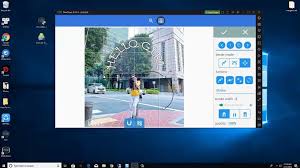
PixelLab is one of the most popular text and graphic design apps for Android — creators use it for YouTube thumbnails, Instagram posts, logos, and banners. There is no official PixelLab app for Windows, but you can run the full Android app on any Windows 10 or 11 PC using a lightweight Android emulator. This guide shows you exactly how, step by step.
Can You Install PixelLab on Windows?
Name
PixelLab for PC: Run PixelLab on Windows (Complete 2026 Guide)
Date
Catagory
There is no official PixelLab desktop release. The reliable way to use PixelLab on a PC is through an Android emulator — a program that runs Android apps inside Windows. Once set up, PixelLab works exactly like it does on a phone, with the bonus of a bigger screen, mouse control, and a keyboard for faster text editing.
Method 1: Install via Google Play Store in the Emulator (Recommended)
- Download and install an emulator (BlueStacks or LDPlayer recommended — see below).
- Launch the emulator and complete the initial setup.
- Open the Google Play Store inside the emulator and sign in with your Google account.
- Search for “PixelLab” and install it.
- Open PixelLab and start designing — your projects save inside the emulator.
Method 2: Install the APK Directly (Sideload)
- Install an emulator such as LDPlayer or BlueStacks.
- Download the PixelLab APK from a trusted source (use the button at the top of this page).
- Drag and drop the APK file onto the emulator window — it installs automatically.
- Launch PixelLab from the emulator’s app drawer.
Safety tip: only download APK files from sources you trust. Random APK sites can bundle malware. Avoid “cracked” builds that ask for unnecessary permissions.
Best Android Emulators for PixelLab on PC
- BlueStacks — most beginner-friendly, smooth performance. Best for first-time users.
- LDPlayer — lightweight, low RAM usage. Best for older or low-spec PCs.
- NoxPlayer — good performance with extra customization. Best for power users.
Minimum system requirements: Windows 10 (64-bit), 4 GB RAM, and hardware virtualization (VT-x/AMD-V) enabled in BIOS — most PCs from the last decade qualify.
Why Use PixelLab on a PC?
- Bigger canvas: design thumbnails and banners on a full monitor instead of a small screen.
- Faster text editing: a real keyboard makes typing and adjusting 3D text much quicker.
- Mouse precision: fine-tune layers, positions, and effects with pixel-level control.
- Everything from mobile: all features carry over — 3D text, custom fonts (TTF/OTF), stickers, shapes, background eraser, and high-resolution export.
PixelLab on PC vs Native Windows Apps
PixelLab (via emulator) is free, has excellent 3D text effects, supports custom TTF/OTF fonts, is easy to learn, and runs offline. Canva is easy with templates but mostly cloud-based and its free plan is limited. GIMP is free and powerful but has a steep learning curve. PixelLab wins for quick, punchy text-based graphics; native apps are better for team collaboration or advanced photo editing.
Pro Tips for Designing on PC
- Enable high-DPI mode in your emulator settings so exports look sharp on big screens.
- Use keyboard shortcuts (Ctrl+Z, Ctrl+C/V) — they work inside the emulator.
- Import custom fonts by placing TTF/OTF files in the emulator’s shared folder.
- Export in PNG for transparent backgrounds, JPEG for smaller file sizes.
- Save project files (.plp) to your Windows folders via the emulator’s shared folder so you never lose work.
Frequently Asked Questions
Is PixelLab free on Windows?
Yes. Emulators like BlueStacks and LDPlayer are free, and PixelLab itself is free to use. Optional in-app purchases from the mobile version apply the same way.
Is there an official PixelLab for Windows?
No. Any site claiming an “official PixelLab PC version” is misleading — the only legitimate way is the Android app running in an emulator.
Will PixelLab run on a low-end PC?
Usually yes. LDPlayer is designed for low-spec machines. Close heavy programs while designing for the smoothest experience.
Can I use my phone’s PixelLab projects on PC?
Yes. Export your projects as .plp files from your phone, move them into the emulator’s shared folder, and open them in the PC version.
Final Verdict
If you love PixelLab’s 3D text and quick design workflow, running it on Windows via an emulator is absolutely worth it — you get the same app with a bigger screen and faster input. For heavy desktop publishing or team work, pair it with a native app like Canva.
App facts: PixelLab by App Holdings — Android app running on Windows via emulator — version 2.1.3 referenced — APK size about 28 MB.